Your shopping experience should be fun and OMBRA totally agrees with you. This is why, the theme is compatible with the most well-known ecommerce plugin in WordPress market — WooCommerce.
WooCommerce comes with plethora of sophisticated options that you could explore by using the plugin documentation or by experimenting them directly in WordPress Dashboard → WooCommerce.
In this chapter, we will focus your attention just on elements that OMBRA brings up to enhance your shopping experience beyond what WooCommerce could offer by default. In order to do so, go to Appearance → Customize → WooCommerce.
Theme Options
The features from Theme Options affect globally the Shop overall experience. Let’s explore them:
Shop Page
- Display options — the options below affect just the look of shop page
- Display type — choose between 6 types of cards: Shadow, Move, Fade, Rising, Plain or List. Read more about cards.
- *Transparency — overlay color transparency while hovering by mouse. The overlay color is set up in Theme Options when choosing General → Colors → Feature color. It affects just Move and Fade Types
- Columns number — the way products on Shop Page are displayed; choose how many columns of products to showcase: 1, 2, 3, 4, 5 or 6
- Columns spacing — enter the spacing between columns, measured in pixels
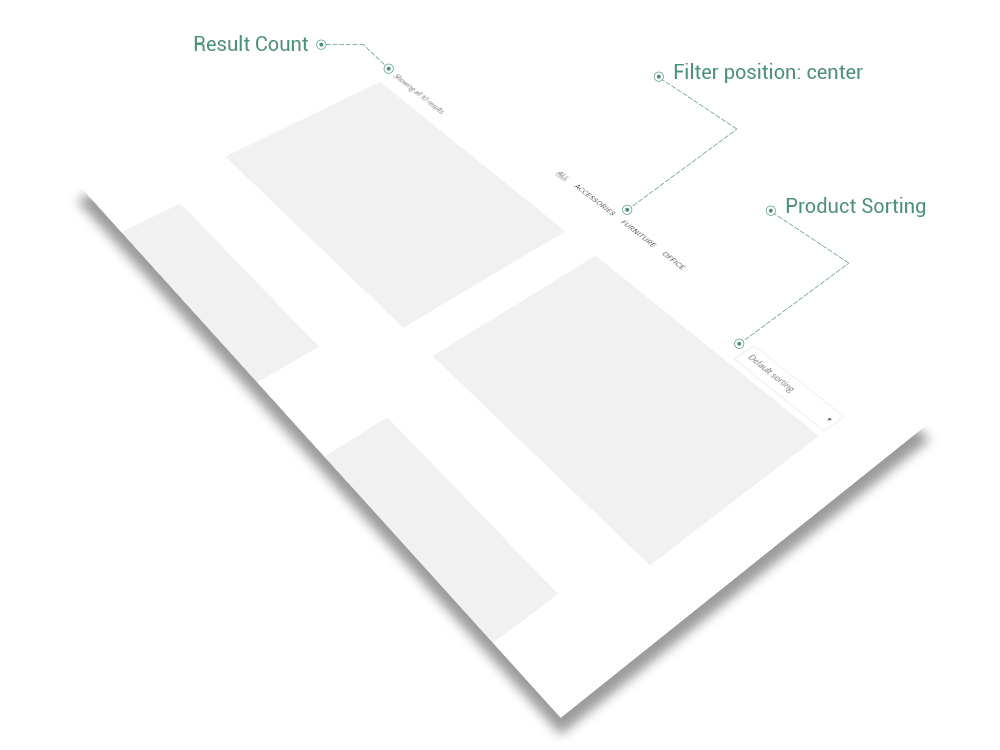
- Categories filter — it refers to products categories filter on shop page
- Position — position the filter either on right, center or left side of the shop page
- Result Count & Product Sorting — they appear above the products on shop page
- Full width — shop page takes screen full width size
Product
- Spacing represents the amount of space Product elements fills up from the total width of browser window. When adding spacing, the width of content is reduced with a certain amount of pixels, either by left or by right side.
- left — add spacing to the left side of Product Content
- right — add spacing to the right side of Product Content
- Visibility section helps you to decide which elements of Single Product will be visible to visitors. See more about visibility items. It has the following options:
- Related Products — located almost at the bottom of Product, there are showcased products that has the same categories as the actual one. Find out more about Related Items.
- Navigation — located at the bottom of Product page, the link is conceived to redirect the visitor to Shop page. It includes the Previous Product link, the Next Product link and All Products link
- Related Products — the options below take effect just on Single Product page
- Display type — choose between 6 types of cards: Shadow, Move, Fade, Rising, Plain or List. Read more about cards.
- *Transparency — overlay color transparency while hovering by mouse. The overlay color is set up in Theme Options when choosing General → Colors → Feature color. It affects just Move and Fade Types
- Columns number — the way Related Products on Single Product Page are displayed; choose how many columns of products to showcase: 1, 2, 3, 4, 5 or 6
- Columns spacing — enter the spacing between columns, measured in pixels
Header
- Menu Icon — the Shopping Cart icon located in Main menu of theme
- Font size — Cart icon could have a certain font-size, measured in pixels
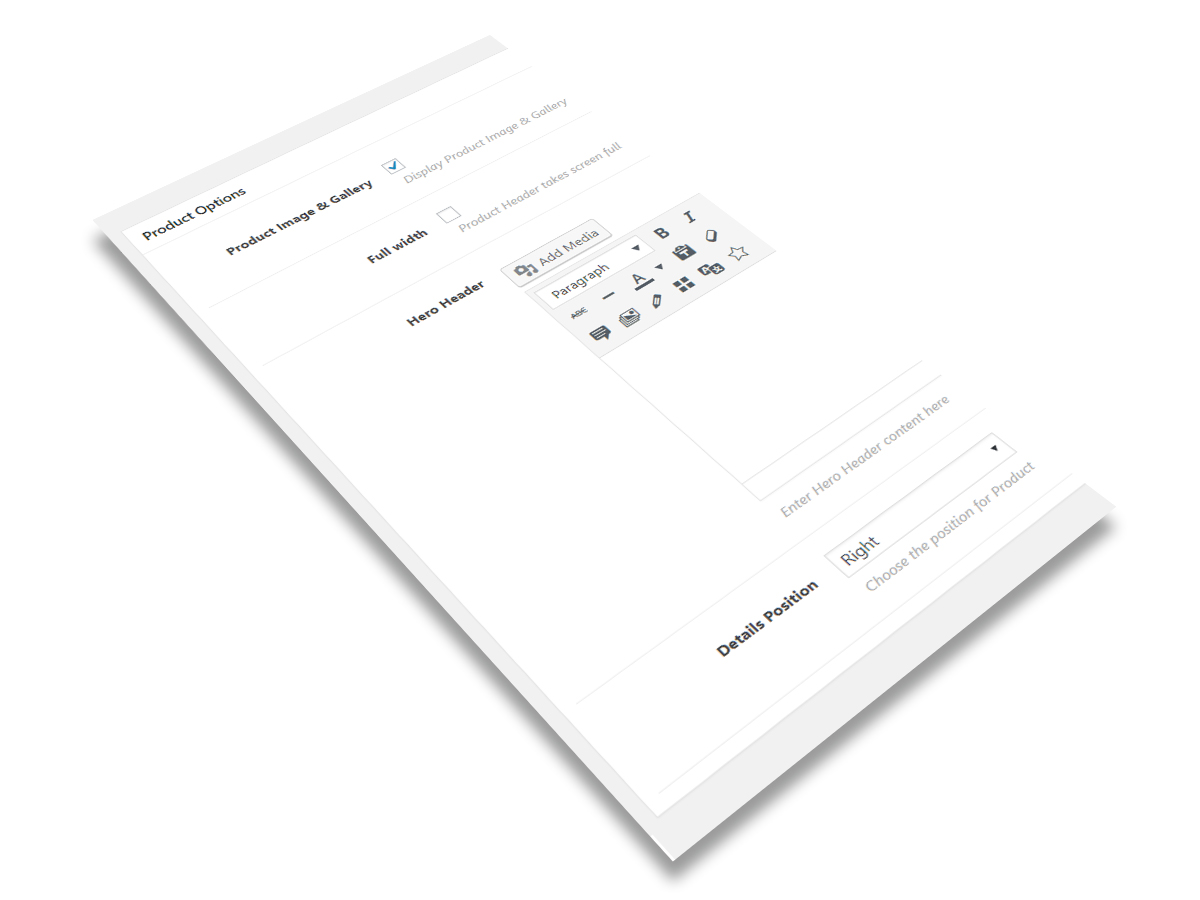
Beyond General Options and Masonry Archive Options that are well-described and explained in General Options chapter, Single Product page features one more panel of options that is called Product Options:
- Product Image & Gallery — you can enable/disable the Product Image & Gallery on Single Product Page
- Full width — Product Header takes screen full width size
- Hero Header — it represent the element you could emphasize your product with and make it unique. You can add any type of content here — from media items to shortcodes — the perfect opportunity to unleash your shop creativity.
- Details position — choose the position for Product Details. It works the same way as Project Details.
Products
Products represent a powerful and flexible shortcode that allows you to showcase creatively the content, initialized before in Products section. It consists of two parts (as general principle, it is quite similar to Projects Shortcodes):
- information data — it is connected with Products Post Type, where Products Shortcode takes data from, like Title and Subtitle (represented by Reviews and Price)
- display data — it is composed of own options that allows to choose what type of content to show and how to display it
The Products options are classified in two main groups:
- General Properties — common for almost all types of Products
- Display Typologies — depending on Products type, these options are different
General Properties
- Products Categories — filter products by categories; leave empty to select all products
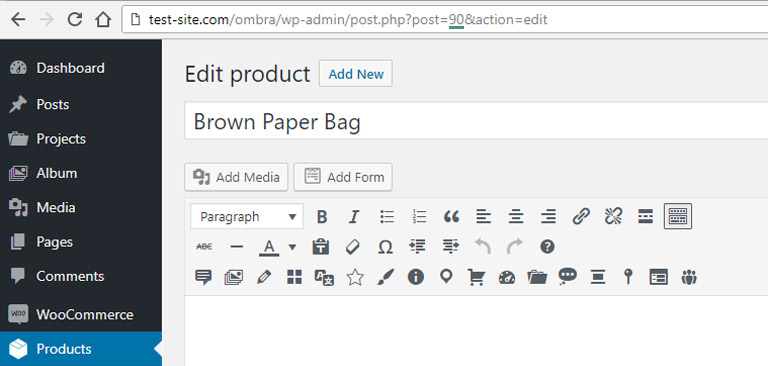
- Items — you can choose specific products to display, by entering their ID’s, separated by comma. The ID could be taken from Product URL
- Order by — products can be organized by Date, Title, Author, ID, Last modified date and Parent ID
- Order — choose between Ascending and Descending order
- Number of items — enter the number if products to display
- CSS class — in case there is a need to add more style rules
Display Typologies
There are three ways the Products will showcase on a site page, depending on your needs (for more visual details, please see):
- Masonry — a grid with multiple columns
- Slider — a single item showcased at a time, embellished with smooth effects. Read more about sliders.
- Carousel — similar to slider, but carousel is able to showcase more than one items at one time. Read more about carousels.
Common Options
- Overlay color — color layer that covers the product when possible (exceptions: Shadow, Rising, Plain and List cards)
- Overlay color transparency — color layer transparency (100% means the color is transparent)
- Animation — the way items appear on page while scrolling
- Animation delay — set a delay time for animation, in seconds — Minimum: 0 seconds, Maximum: 3 seconds
Masonry
- Categories filter — positioned inside General Properties panel because of technical reasons, it helps to sort products based on categories: Main Categories shows just the categories without its child-categories, if comparing to All Categories
- Display — the way products are displayed: Shadow, Move, Fade, Rising, Plain, List
- Columns — how many products columns are displayed (1, 2, 3, 4 or 6)
- Columns spacing — spacing between columns (pixels)
Slider
- Height — slider height in pixels
- Full-height — slider height takes Window full-height. It overwrites height specified at Height option mentioned before
- Image scaling — the way images scale on slider. Its two options have specific behaviours: Fill – recommended for landscape images and Fit – recommended for portrait images
- Scroll down arrow — useful when you use a fullscreen slider and you want to point out that below slider there is more content to see
- Title font-size — set a custom font-size for Title you already specified in Products Post Type
- Subtitle font-size — set a custom font-size for Subtitle you already specified in Products Post Type
- Show content — content includes any text element slider might showcase: title, subtitle, description or button
- Delay content — timing delay before content shows up after slide appearance — Minimum: 0 seconds, Maximum: 3 seconds
- Parallax effect — smooth scrolling effect applied to slider images
Carousel
- Height — carousel height in pixels
- Full-height — carousel height takes Window full-height. It overwrites height specified at Height option mentioned before
- Image scaling — the way images scale on carousel. Its two options have specific behaviours: Fill – recommended for landscape images and Fit – recommended for portrait images
- Scroll down arrow — useful when you use a fullscreen slider and you want to point out that below slider there is more content to see
- Slides — how many items slides are displayed at a time (3, 5 or 7)
- Slides spacing — spacing between slides (pixels)