Posts are entries for creating your site blog, listed in reverse chronological order on that page you set them up. The settings from this article affect locally the Post’s features.
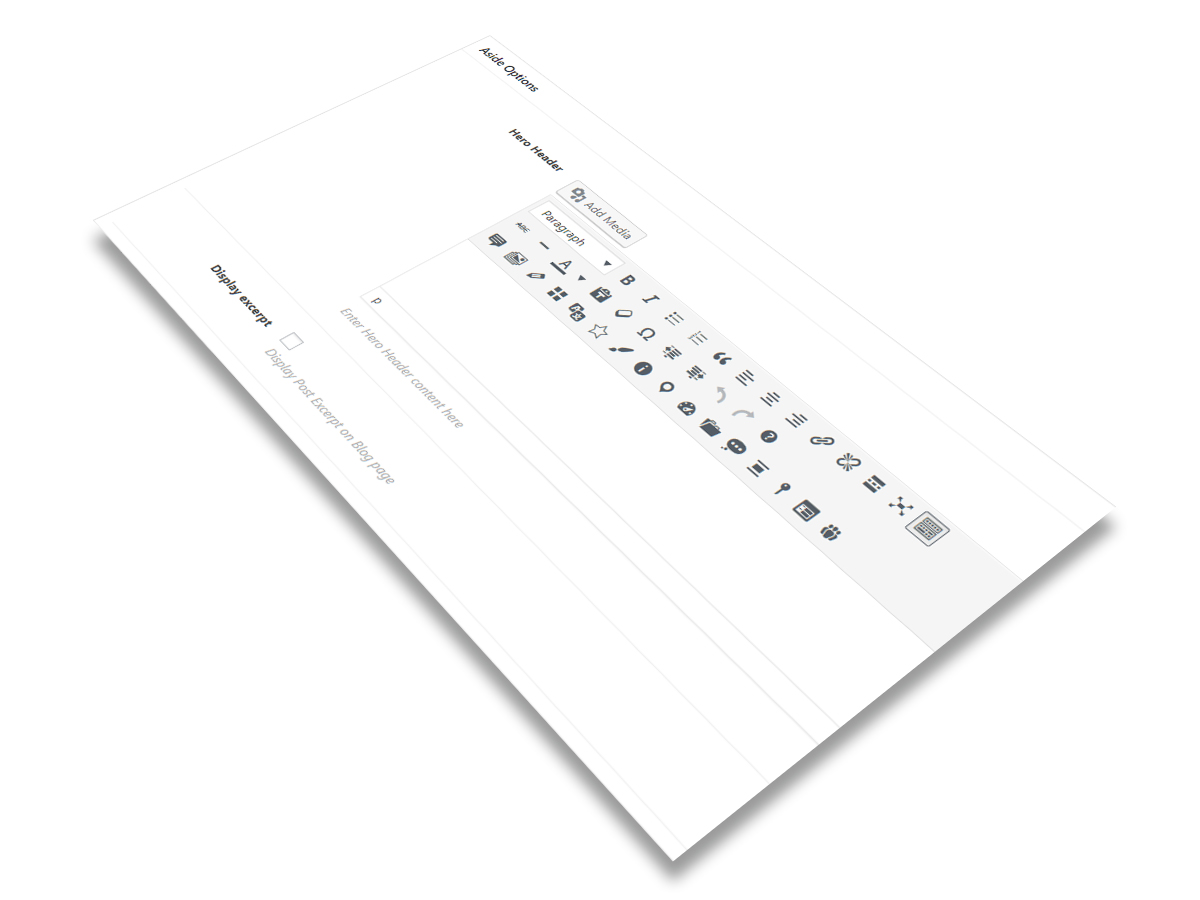
Any Post, that Ombra Theme is able to create, consists of the following layout:
- Post Header — the element which offer uniqueness to Post look, being defined by different types of Post Formats (Standard, Gallery, Image, Quote, Video, Audio, Link)
- Post Content — consists of Branding, Text and Sidebar
- Post Footer — composed of following sections: Info, Related Posts, Comments and Navigation
Due to their reverse chronological order, the posts are meant to be timely. So, the older posts are archived based on year, month or even day.
The most important element of any Post is represented by its Header, as it can easily differentiate the Post from any Project or Page. The Post Header is defined by Featured Image and 8 Post Formats, that can be used to customize its presentation and make it unique among other site’s pages.
In order to create a post, you should do the following steps:
- Log in to your WordPress Dashboard
- Click Posts → Add New
- Enter your post title in the upper field, then fill up your post body content in the main post editing box
- As needed, choose a Post Format, select a category, add tags, set a Featured Image
- Customize your Post from General Options panel or from the panels specific for Post Formats
- When you are ready, click Publish
Featured Image
One important feature of any Post is represented by Featured Image or Post Thumbnail — an image that is chosen to be representative for each Post separately. It has a privileged position inside Post layout, composing its Header.
In order to set it up, simply click on Set featured image link, and it will bring up the media uploader popup. You can select an image from your previous uploads or upload a new image from your computer.
The importance of Featured Image is obvious if considering it is used as defining item inside different elements of site structure:
- it stands at the origin of Featured Branding term, being an essential element of it
- it appears on Single Post page, being the characteristic element of three Post Formats: Standard, Image and Aside
- it may be displayed on Archive pages (Blog page, Search page, Categories page, even Projects page and so on)
- it represents the origin of the name of Post Formats main elements: Featured Gallery, Featured Quote, Featured Video, Featured Audio, Featured Link
Taxonomies
You have the option to organize your posts based on categories and tags, that are called together with the generic term of taxonomies (taxonomy is a way to group things together).
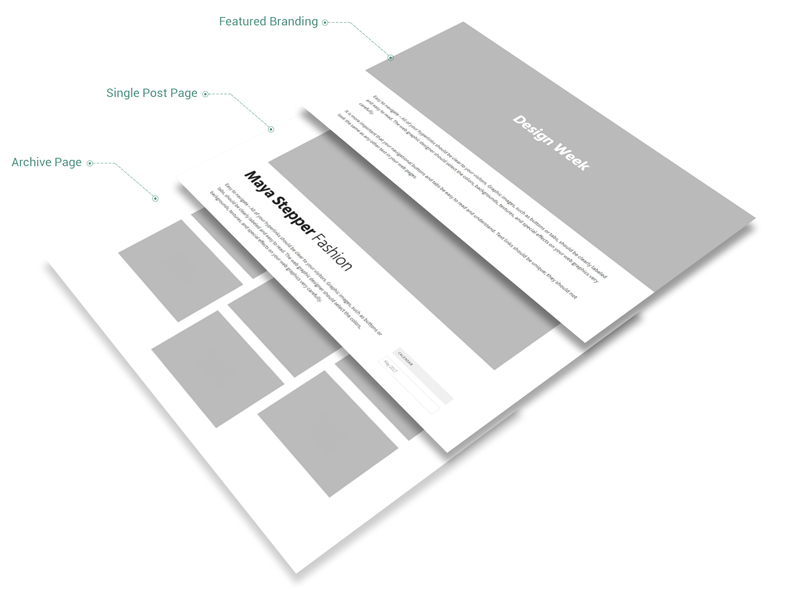
Categories are displayed beneath the Post title, as part of Metadata. In the case of tags, they are showcased at the end of Post, inside Info section.
Excerpt
The Post Excerpt is the post summary or a brief teaser of your post, featured on archive pages of your site as well as on the category or search pages.
The Post Excerpt is displayed for the following Post Formats: Standard, Gallery, Video, Audio and Aside.
Note that if the Excerpt is not specified in the Excerpt input field on Post admin side, then WordPress will automatically use as the Excerpt the first 55 words of your post content or the content before the <!–more–> quicktag.
In Theme Options, you can change the number of words you want to display as Post Excerpt on Archive Pages, by accessing Content → Page → Words number of Post Excerpt. Please see
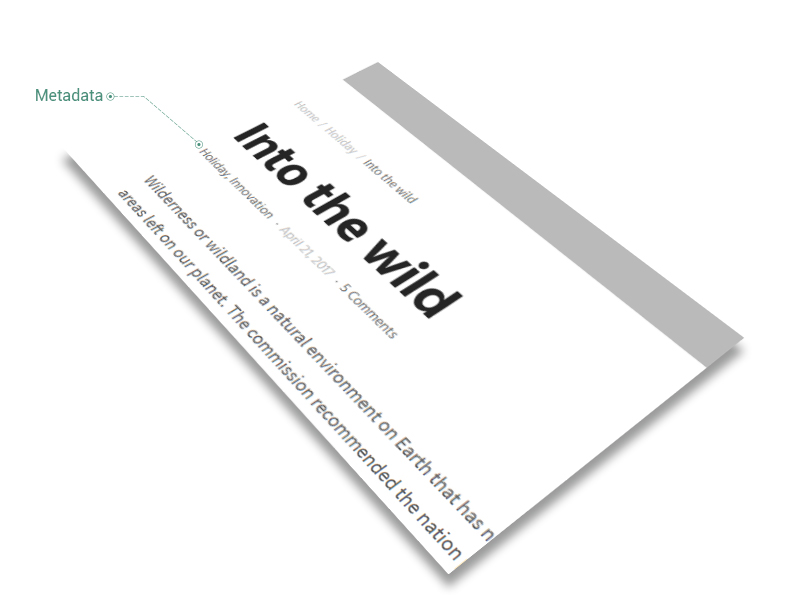
You could add an Excerpt to your Post, by activating the Excerpt field in Screen Options panel (check it at the top of Post admin page). Then find the Excerpt field under the post edit box. Find more about excerpts.
Post Formats
The Post Formats are conceived for presenting posts in a certain format and style. Even it is an optional value added to Posts, the Post Formats offer you the possibility to enhance your content with unique and visual appealing elements, both inside Post page or Archive Pages. On Single Post Pages, they represent the defining element of the Post Header.
A number of eight Post Formats are available while creating Posts:
Standard is the default post format in WordPress. On Single Post page, the Featured Image is displayed inside Post Header, above all the content. On Archive Pages, the Post card comprises the Featured Image, title and metadata below the Featured Image and, in certain cases (Shadow, Rising, Plain and List cards), the Post Excerpt is displayed at the bottom.
The main advantage of Standard Post Format is that it fits well any kind of post. So, when you do not want to be too specific while publishing a Post, then this kind of format could be the best solution.
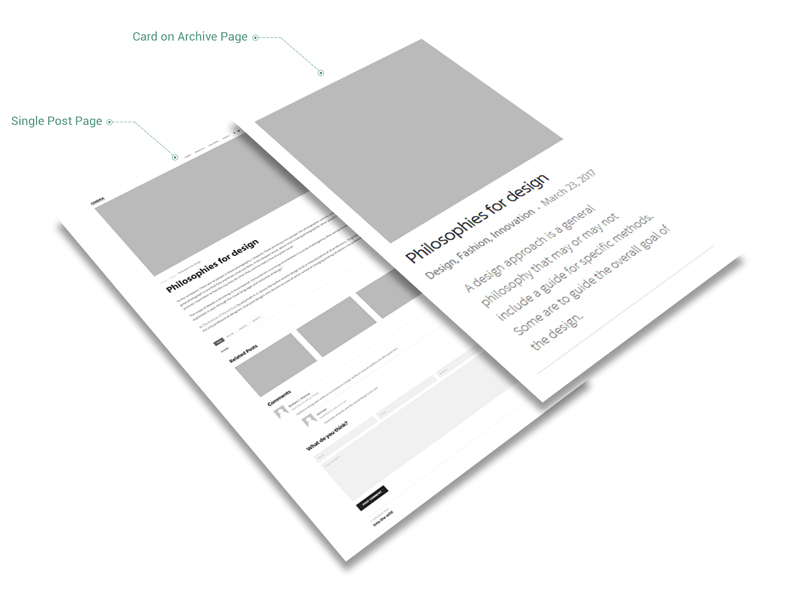
Gallery feature allows you to add multiple images inside your Post, all the images being showcased as a Slider. Its layout is similar to Standard Post Format, both on Single and Archive Pages. The only difference is that the slider, that we use to call Featured Gallery, replaces the Featured Image.
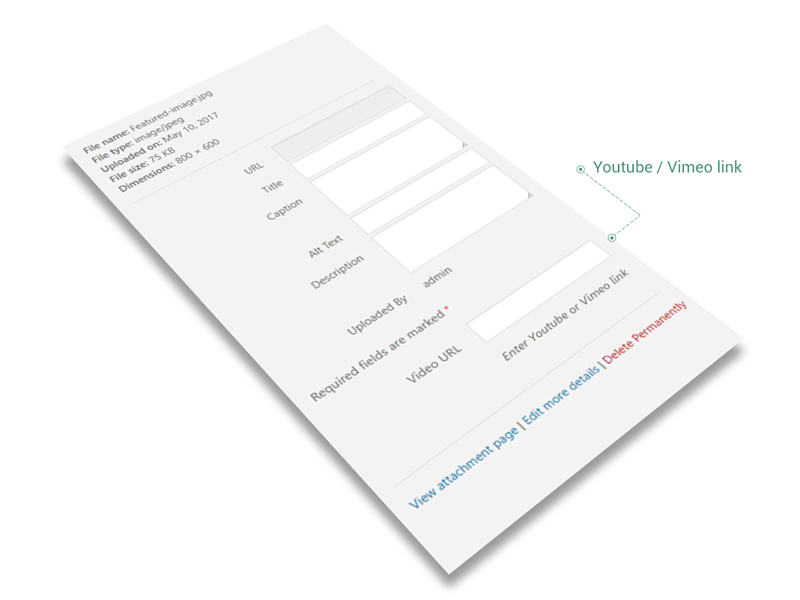
One important feature of the Gallery Post Format is that you can add — beyond the images — Youtube and Vimeo videos, by entering their links in Media Uploader Popup.
The Image Post Format has the same look on Single Post page as Standard Post Format. However, on Archive Pages, it displays just the Featured Image, with no titles or other additional information (like metadata or Post Excerpt).
It is used especially when you want put the main focus on Post Featured Image, which is an essential element while delivering information.
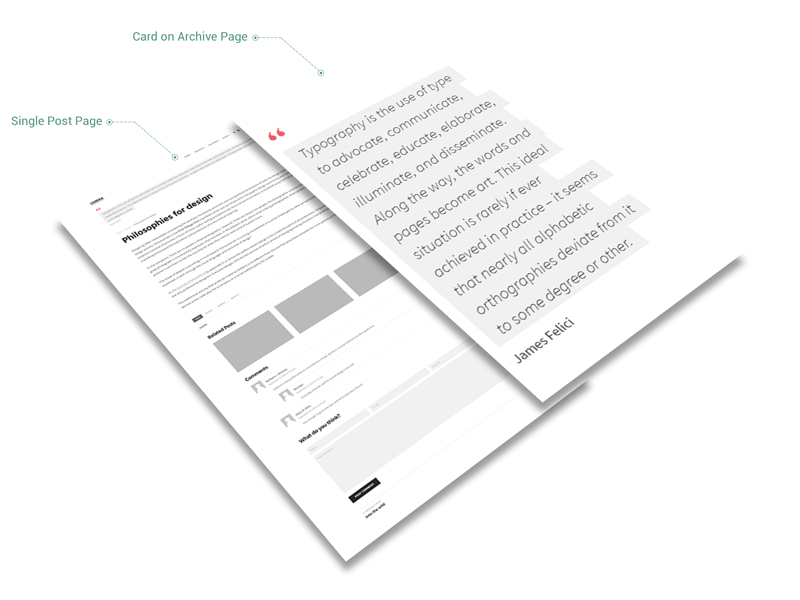
The Quote Post Format is used for quotations, mainly when you just want to share a quote which is not within a standard post or article. It contains a blockquote holding the quote content and the author immediately below (you can also add a link to quote author).
On Single Post page, a big quote will be displayed inside Post Header. On Archive Pages, the Post card has no title or excerpt, but is represented by the quote and, depending on case, by its author.
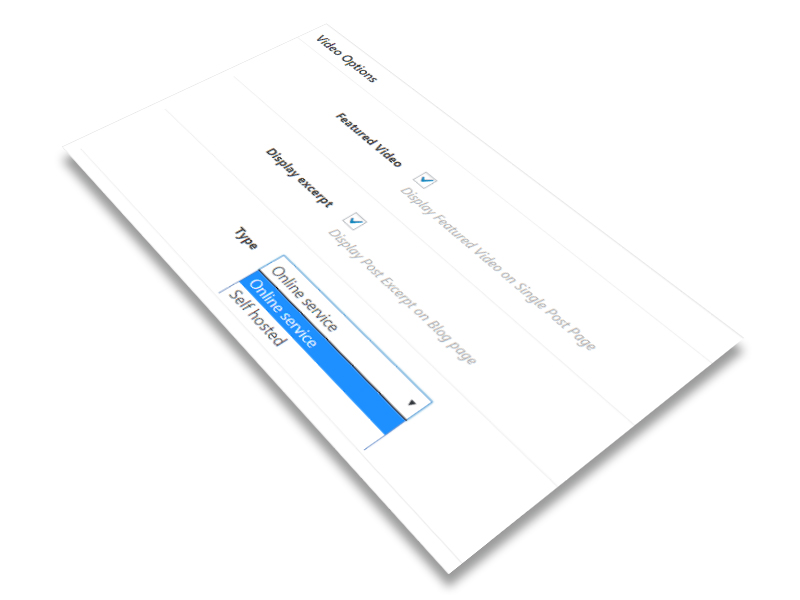
A post in Video Post Format contains either a video embedded from a third party video hosting service (YouTube and Vimeo) or a video uploaded locally in Media Library. In order to showcase the video, you need to insert the video source (the Url, embedded code or the local link from Media Library) on Post admin side. For local uploaded videos, you also have the Autoplay option.
As for Video Post Format layout, it is very similar to Standard Post Format, but instead of Featured Image, you will have a Featured Video.
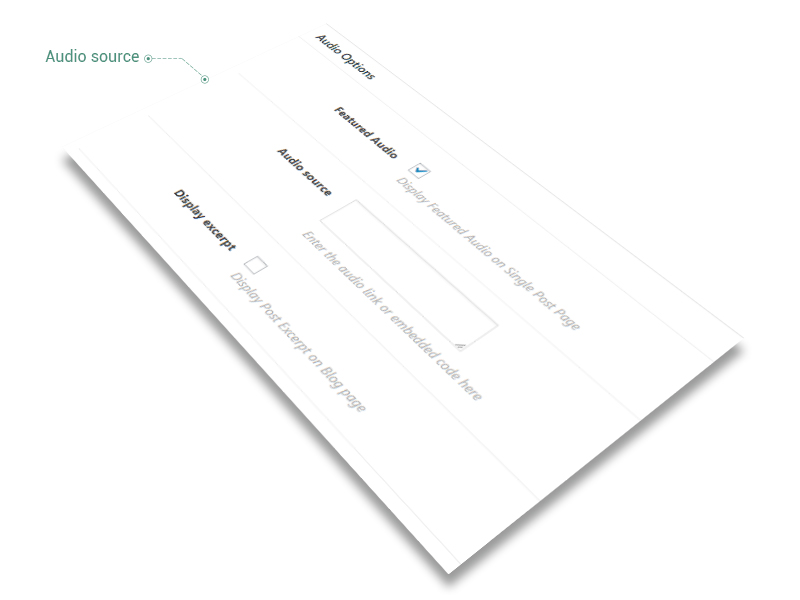
As Video Post Format, a post in Audio Format contains an audio embedded from a third party audio hosting service (at actual moment — Soundcloud). In order to display the audio, you need to insert the audio source (the Url or embedded code) on Post admin side.
Regarding the layout, it is very similar to Standard Post Format, but instead of Featured Image, you will have a Featured Audio.
A Link Post Format contains a link to a web location. It is generally recommended to use it when you want to share a link with the certain information and add inside your post just couple of remarks about the data taken from the link.
Its layout is almost identical with that of the Quote Post Format, but this time a formatted link will be showcased instead of quote.
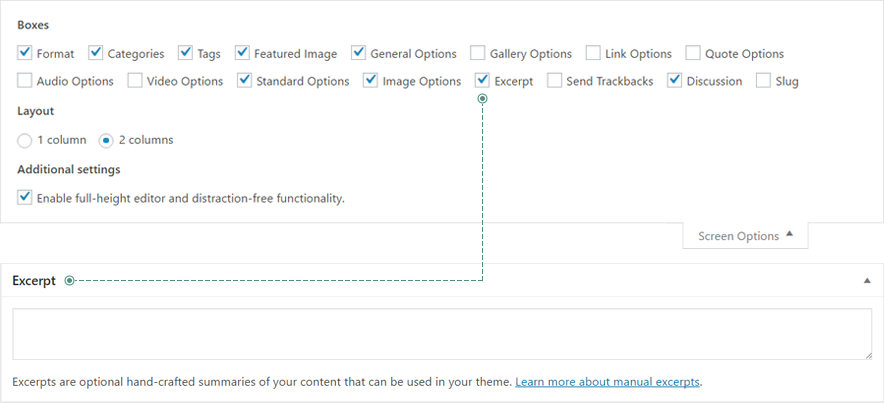
The Aside Post Format is the only post format that allows you to build up from scratch post layouts and designs according to your unlimited creativity — all of these due to Hero Header Area which displays on full width size and allows you to add any type of content. On Archive Pages, its layout is similar to Standard Post Format.