Sidebar represents a vertical column for displaying information other than the main content of the web page (for example, a short list of recent articles, recent comments or a list of pages, can easily be displayed across the entire site).
Its main purpose has been to provide navigation assistance for the visitors to help them move about your site and find the information you want them to see.
A sidebar could also be called a Widgetized Area, as it contains widgets that you could add and customize. The widgets could be placed in Appearance → Widgets.
Summary
Locations
OMBRA theme can feature up to 6 sidebars displayed in three different site locations: one sidebar is displayed in Site Header, one sidebar — in Site Content and up to four sidebars (a sidebar means a column of widgets → the number of widgets columns is customizable from Theme Options) showcased in Site Footer.
Any sidebar, Ombra theme comes with, can be customized in Theme Options, by going to Appearance → Customize → Header / Content / Footer → Sidebar.
If the sidebar placed in Site Header has always the same position (it opens on left side of your site), the Site Content sidebar can be placed on either left or right side of the content.

Widgets
Widgets are conceived to add content and features to your Sidebars. Examples are the default widgets that come with WordPress: Archives, Categories, Tag cloud, Search, Recent Posts.
You could add any kind of widgets inside the sidebars placed in Site Header, Content or Footer, as their offer more control and information to site visitors.
The theme also comes up with couple of new widgets:
Pikart Recent Projects
The Recent Projects Widget displays the most recent projects in your sidebar, making it easy for your readers to see what’s new on your portfolio. It works a similar way to Recent Posts Widget.
Pikart Social Links
The Social Links Widget allows you to add the necessary connections with your social networks. It consists of the following options:
- Title — the title of widget
- Font size (pixels) — the size of social icons
- Target — the target specifies where to open the linked social icon
- _blank — opens the linked icon in a new window or tab
- _self — opens the linked icon in the same frame as it was clicked
- Email — put here your email in order to appear first in the list of social icons
- Add social link — the button allows you to add as many social links as you need
Pikart Flickr
The Flickr Widget allows you to show thumbnails of your latest Flickr photos in the sidebar. It consists of the following options:
- Title — the title of widget
- Flickr ID — find more about how to get your Flickr ID on this link
- Flickr API Key — in order to use the Flickr API you need to have an application key, used to track the API usage
- Number of photos — choose how many photos you want to display inside the widget
- The type of photos from user or group — you can display photos from a single user or a group of users
- Photo size — adjust the size of photos depending on your needs
- Columns — choose how many columns of photos you want to show
- Columns spacing — enter the spacing between photos
Pikart Instagram
The Instagram Widget allows you to display your Instagram photos in the site’s sidebar. It consists of the following options:
- Title — the title of widget
- @Username or #Hashtag — you can display photos either by using the Instagram username or the Hashtags
- Number of photos — choose how many photos you want to display inside the widget
- Columns — choose how many columns of photos you want to show
- Columns spacing — enter the spacing between photos
Pikart Twitter
Twitter is a service for the exchange of brief messages, commonly called “tweets”, between users. The Twiiter Widget allows you to display the latest “tweets” on your site. It consists of the following options:
- Title — the title of widget
- Twitter user — enter the username of the Twitter account (e.g. @yourUsername)
- Number of tweets — choose how many tweets you want to display inside the widget. The maximum is 20 tweets
- Theme — choose between Light and Dark color skins
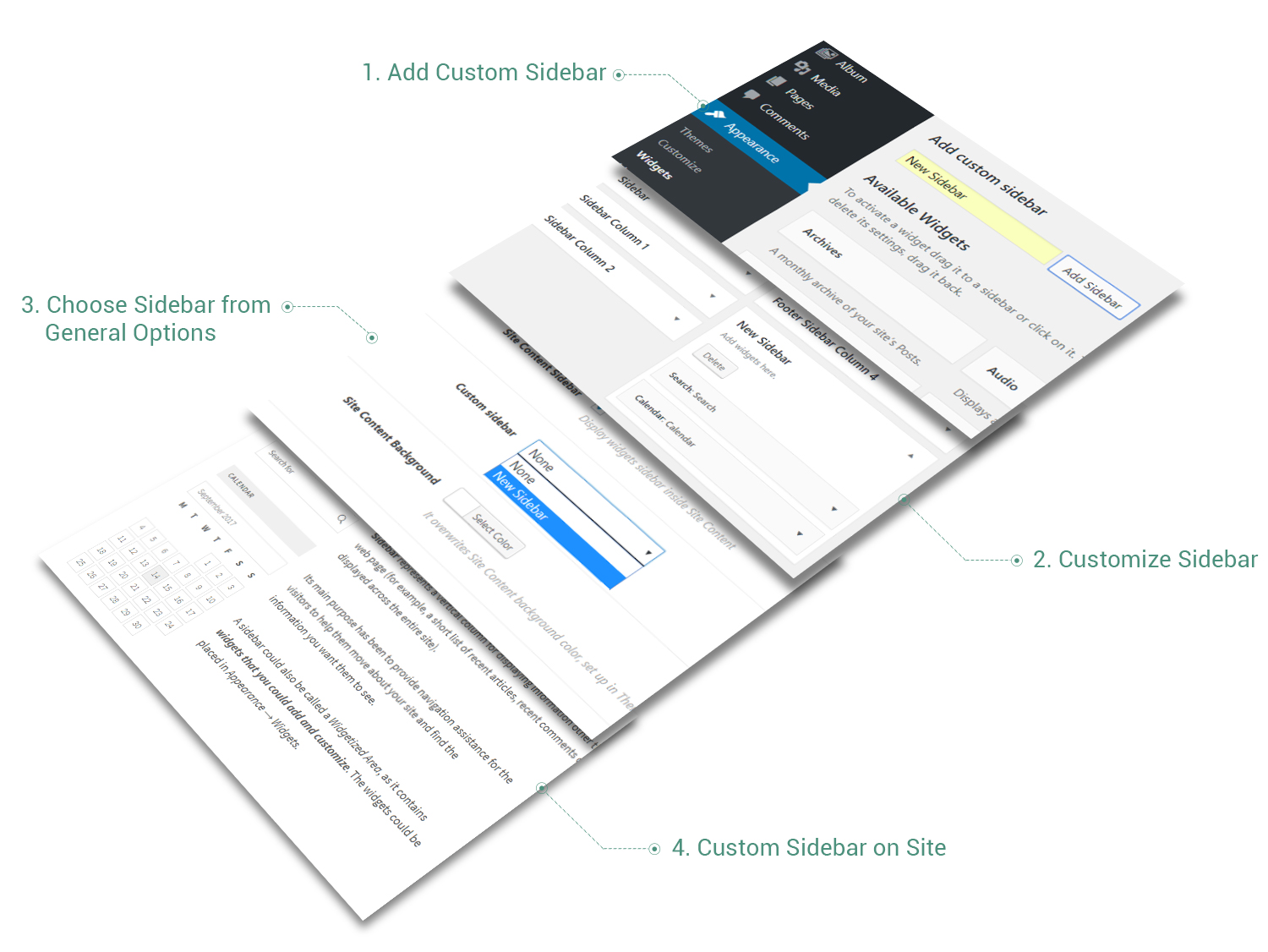
Sometimes, you just need to showcase a specific sidebar (with certain Widgets) on a specific page. In this case, you will enjoy the Ombra powerful tool of creating custom sidebars. You can create as many custom sidebars as you want and you are able to insert them in one single location: Site Content.
In order to create a custom sidebar, go to Appearance → Widgets and find Add custom sidebar field. Insert there the name of Custom Sidebar and click on the button Add Sidebar. A new sidebar box appears where you can add all the necessary Widgets.
The final step is to place the sidebar on the page you need, by choosing the new created sidebar from Multiple Fields Box from General Options → Custom Sidebar.
For example, on Shop Page you decide to put just the Widgets related to Shop, like Cart, Price Filter, Products Categories and so on.