One of the most important aspect of the site stands in its layout. A layout that is easy to follow will give the site’s visitor easy access to valuable and important information. This is why it’s crucial to understand the manner OMBRA manages the layout and how it is structured.
By this way, you will be able to create an effective layout with proper sizing, spacing and placement of content, as well as to make the site appearance consistent and visually appealing.
Ombra Theme can hold and display many different types of content, organized in Posts, Projects, Pages or Albums. All of them are called generically Post Types.
Three of them, namely Posts, Projects and Pages, have many similar elements, despite the fact they stand apart from each other by specific features.
Keep in mind For a facile presentation, let’s call Post, Project or Page with the generic term of Single and — when refering to all of them — Singles.
Summary
The structure of any Post, Project or Page has almost the same elements, that could be grouped in two main categories:
- Main elements (Featured Branding, Header, Content, Footer)
- Sub elements (Branding, Text, Info, Related Items, Comments, Navigation, Custom fields)
Main elements
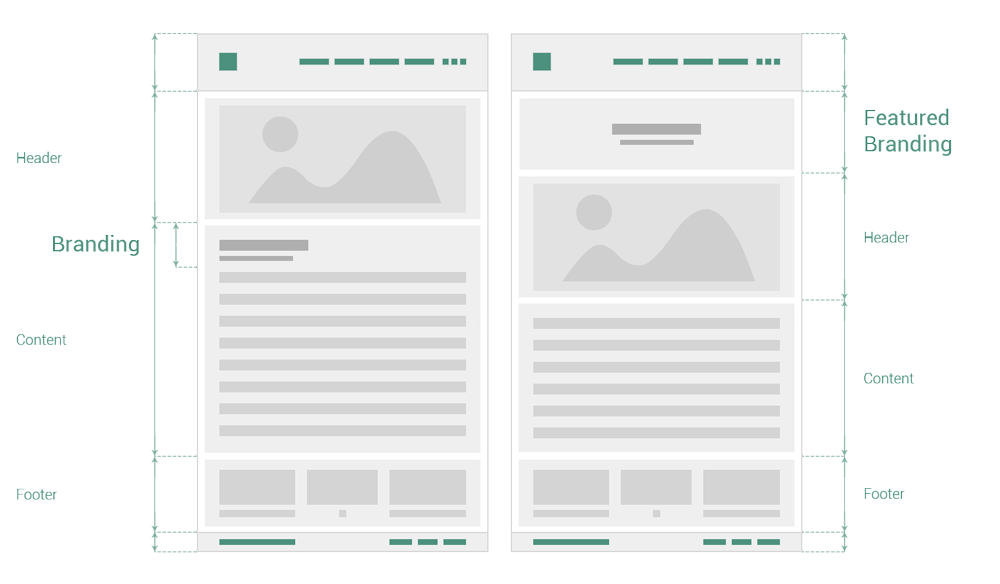
The main elements are independent items that could comprise, in certain cases, the sub-elements. They also have a precise position and display order in the site, that are not changeable.

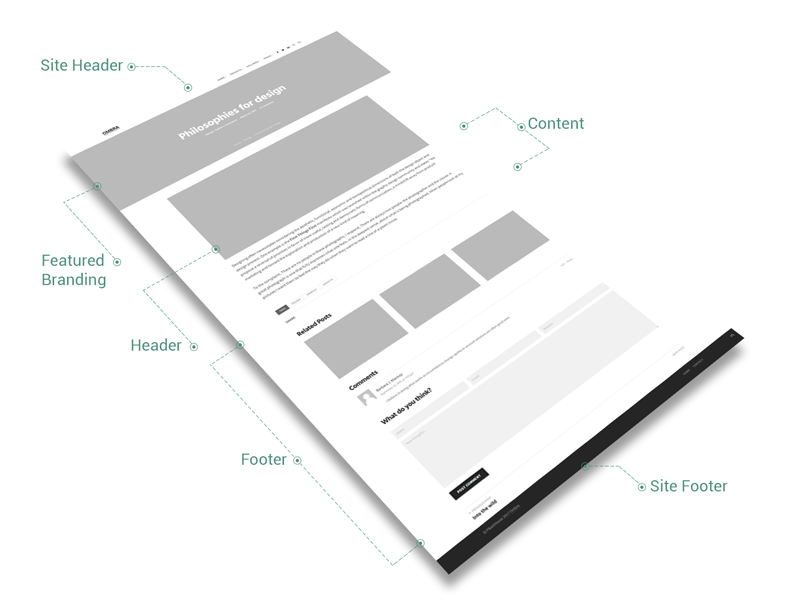
Featured Branding vs Branding
The “branding” term reffers to that area of Single, which includes title, metadata (depending on Single, it could comprise Date, Categories or Number of comments) and breadcrumbs.
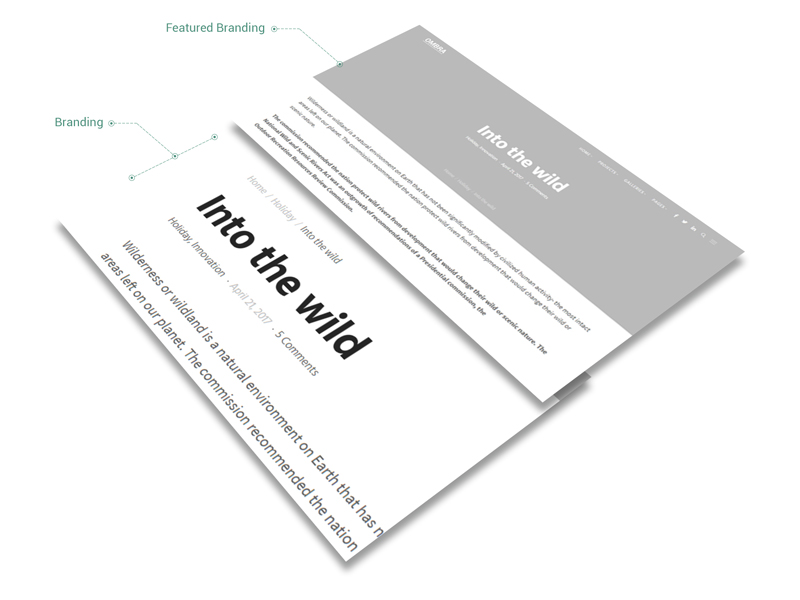
Keep in mind It is not possible to have at the same time on the same Single both Featured Branding and Branding as they do display the same thing, but with different looks. So, if Featured Branding is enabled, the Branding will be disabled and vice versa.
The Branding is usually displayed inside Content layout (Post or Page), but also could be displayed inside Header layout (Project).
A unique aspect of Feature Branding is that it always gets the site full-width size.
Compared to Branding, the Featured Branding is designed based on the Featured Image of the Single (this is where the name comes from) and has a specific position inside it: above all the elements of Single layout.
Header
The Header is the element which generally makes the major difference between Post, Page and Project. Each of them has a specific Header:
- Post changes its Header based on the 8 Post Formats it offers: Standard, Gallery, Image, Quote, Video, Audio, Link and Aside
- Page has a customizable Hero Header Area where user is able to insert any text, media items and elegant shortcodes in order to embellish it
- Project consists of 3 types of Headers: Masonry, Slider and Carousel, that could be extended also with a Hero Header Area. The Header also displays the Description and Custom fields with additional data about project itself.
For more information about Project, please visit Managing Projects section.
A unique aspect of Header is the Hero Header Area: almost always, it helps you to insert content on site full-width size.
Content
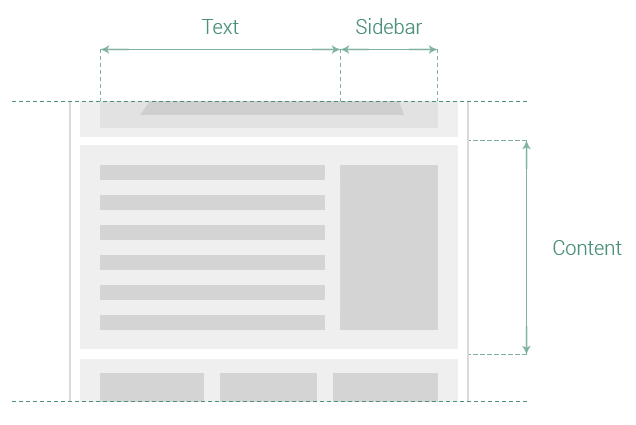
The Content represents that area where you could insert any Text, Media items or Shortcodes, enhanced by an informational sidebar of useful Widgets.
The Content layout consists of three elements, generically called, Branding, Text and Sidebar. In case Featured Branding is enabled, the Branding element will not be displayed.
Footer
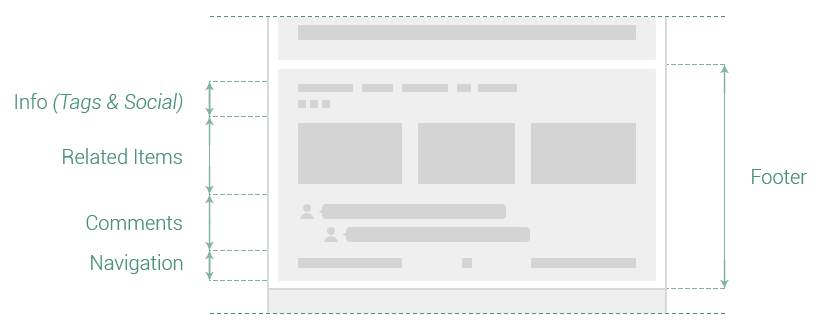
The Footer is the element which includes the Single common elements, like Info (Tags & Social Share), Comments and Navigation. There is also one more field — Related Items — specific just for Post and Project.
It helps visitor to navigate further the site, by accessing other site’s pages, or to share the content on social networks.
Sub elements
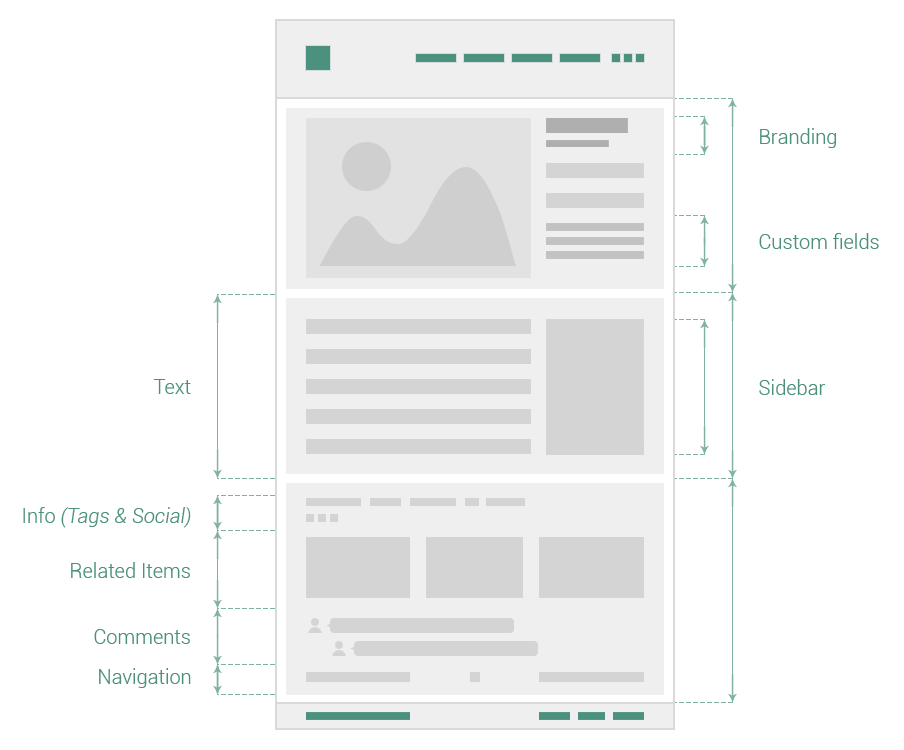
The sub elements are dependent items, included inside Main elements. Their position and display order generally are not the same, depending on the type of Single. The position and display order of certain sub elements are even customizable, like Branding or Sidebar.
The sub elements are: Branding, Text, Info, Related Items, Comments, Navigation, Sidebar and Custom fields.
Branding
See Featured Branding vs Branding.
Text
The text is editable part of Content, where user is able to insert text, media items or elegant shortcodes — all of them make the most substantial part of the page.
Sidebar
It is always inside the Content and could be displayed either on left or right side of the Content. One more thing, its size is customizable from Theme Options. Please see.
Info
It always includes Social Share and, depending on Single type, it could comprise taxonomies in the form of Tags (for Post and Project). The Info area is displayed inside Single Content.
Related Items (when saying Items, we refer here at either Posts or Projects) are conceived to view the related content from across all the posts or projects of your site.
They can be related to each other by having the same taxonomies, represented by both categories and tags.
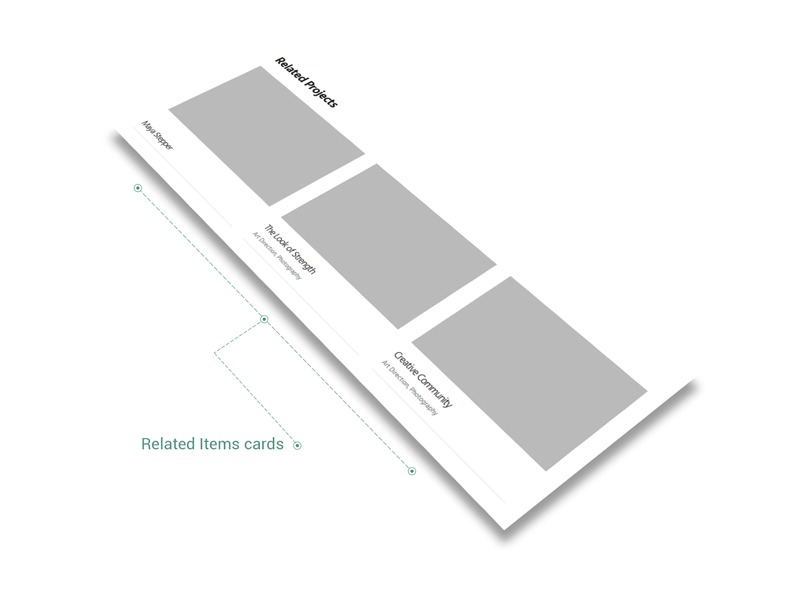
The Related Items are always displayed as cards inside Single Footer and are specific for Post (Related Posts) and Project (Related Projects).
Enable or disable them by going to Theme Options, at Appearance → Customize → Content → Post / Project.
The Related Items (Posts or Projects) can have a significant impact on your site by increasing your pageviews and decreasing your bounce rate.
Bounce rate essentially represents the percentage of initial visitors to a site who “bounce” away to a different site, rather than continue on to other pages within the same site.
Comments
Comments allow your website’s visitors to have a discussion with you and each other. They are always displayed inside the Single Footer.
Navigation
The Navigation module helps to pass from one page to another, keeping visitors inside your site’s content. The previous & next items are designed based on chronological order, or, by other words, on the date they were published. You can change anytime their order by changing their publishing date. The navigation is always placed inside the Single Footer.
Custom fields
Custom fields are specific for Project Header, as they comes with additional information about the project itself, like date or client name.