Projects represent the right tools for enhancing your portfolio by making each project to stand from the crowd with the unique layout, the mix of images and text alignments to unleash your creativity.
Technically speaking, projects are custom entries for displaying your portfolio or works, listed in reverse chronological order on that page you set them up.
Projects are conceived to have two sides: Single and Archive (that is displayed with Projects shortcode). The information from this article is oriented on Single Project’s features and the way they affect locally the project itself.
Any Project, that Ombra Theme is able to create, consists of the following layout:
- Project Header — the element which offer uniqueness to Project look, being defined by different types display: Masonry, Slider and Carousel. It also contains Branding, Project Description and Custom fields.
- Project Content — consists of Text and Sidebar
- Project Footer — composed of following sections: Info, Related Projects, Comments and Navigation
General overview
For any kind of project, you are able to set up the elements like Featured Image or Taxonomies (Categories and Tags).
The first one — Featured Image — is essential as it appears on Projects Archive or, by other words, on any page where you added your works with Projects shortcode. So, it is mandatory to add it in order to display optimally your portfolio.
The second one — Taxonomies (taxonomy is a way to group things together) — refers to the Categories and Tags of the project. Categories are displayed beneath the Project title, as part of Metadata. In the case of tags, they are showcased at the end of Project, inside Info section.
Typologies
The most important element of any Project is represented by its Header, as it can easily differentiate the Project from other pages of your site. Actually, the Project Header is the element which differentiate projects from each other.
There are three types of Project Headers that can be used to customize the project’s presentation and make it unique among other projects: Masonry, Slider and Carousel. Each of them could also be enhanced by Hero Header Area, where you can add any type of content.
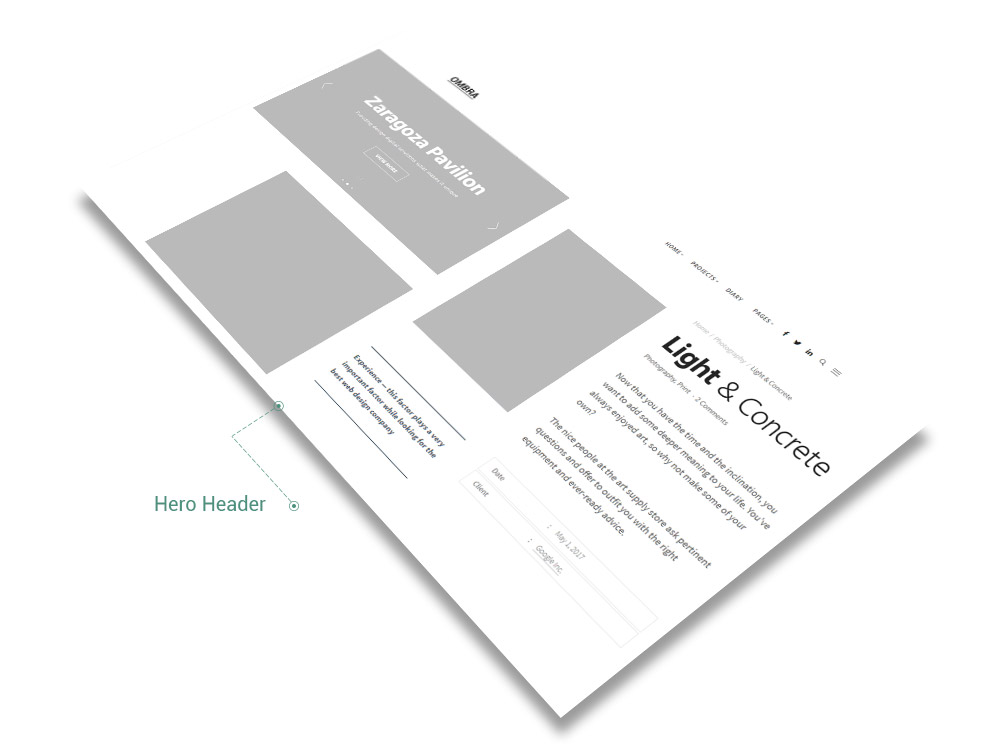
Any of them consists of the following elements: Media items (that could appear as Masonry, Slider or edited inside a Content Block), Branding (title, metadata, breadcrumbs), and Project details (which include Project description and Custom fields — the theme comes with one built-in custom fields — Date — but you are able to add as many Custom Fields as you want).
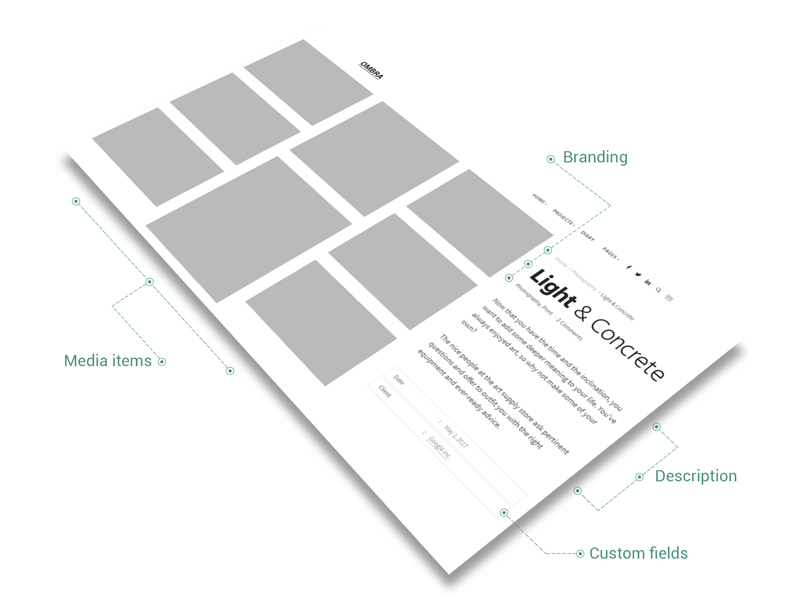
When Masonry is set up, the Project Header is displayed as a Gallery of cards (in this case, the cards are actually images). All you need to do is to upload the images you want from Media Library, then customize the specific options for Masonry:
- number of columns — how many columns of images are displayed: 1, 2, 3, 4, 5 or 6
- columns spacing — spacing between columns, measured in pixels
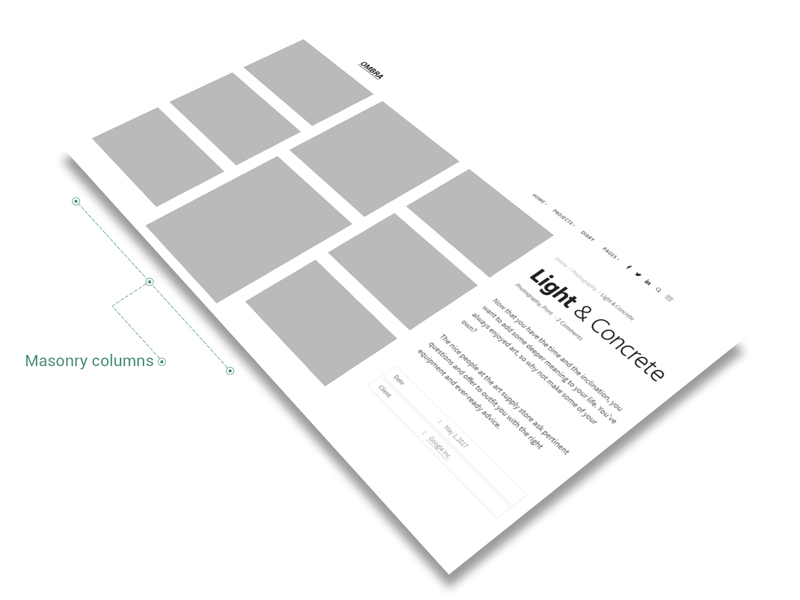
If choosing Slider as Project Header, the media items are presented as a slider of images. After uploading the desired images, you need to set up the slider options and you are good to go:
- height — slider height, measured in pixels
- image scaling — the way images scale on slider. Its two options have specific behaviours: Fill – recommended for landscape images and Fit – recommended for portrait images
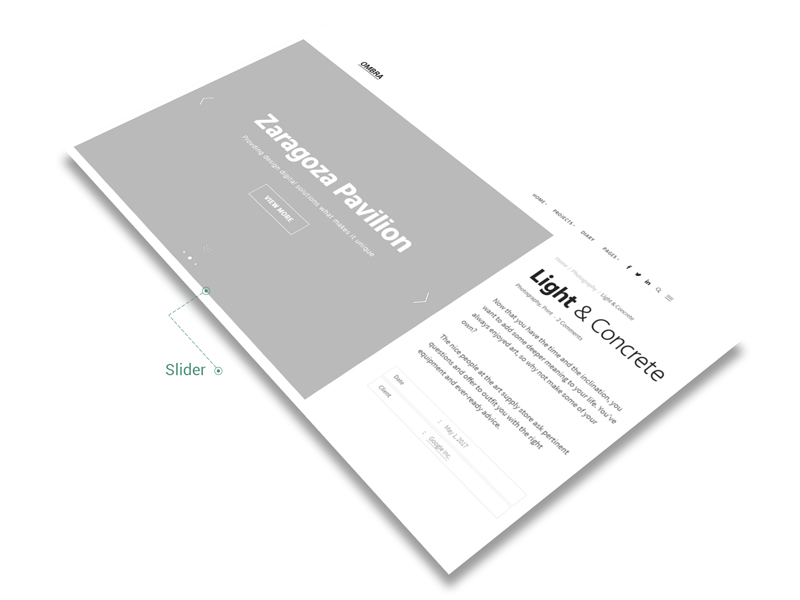
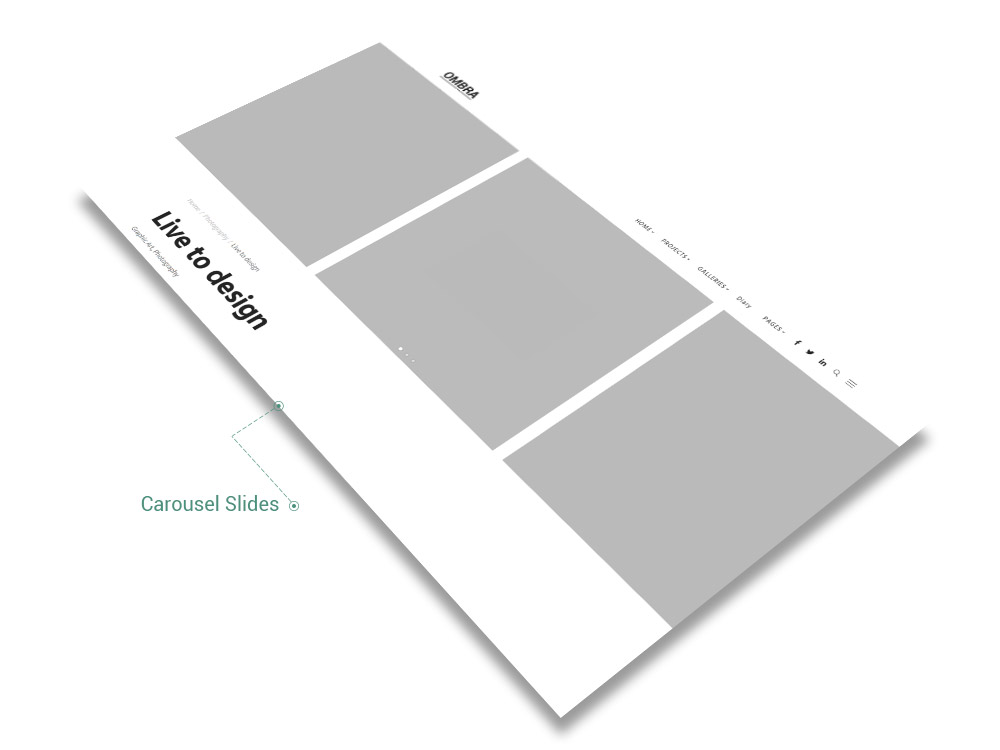
If choosing Carousel as Project Header, the media items are presented as a carousel of images. After uploading the desired images, you need to set up the following carousel options:
- height — carousel height, measured in pixels
- number of slides — how many slides of images are displayed: 3, 5, 7, 9 or 11
- slides spacing — spacing between slides, measured in pixels
Project Options
Beyond the General Options, any single project has specific features presented in Project Options panel, below the edit box. They are the necessary tools to make your page to stand out from other projects of your site.
- Type — choose how the project images will be displayed: Masonry, Slider or Carousel
- Full width — Project Header takes screen full width size
- Upload — add images to your project from Media Library
- Hero Header — unleash your creativity while choosing the layout and design for your project
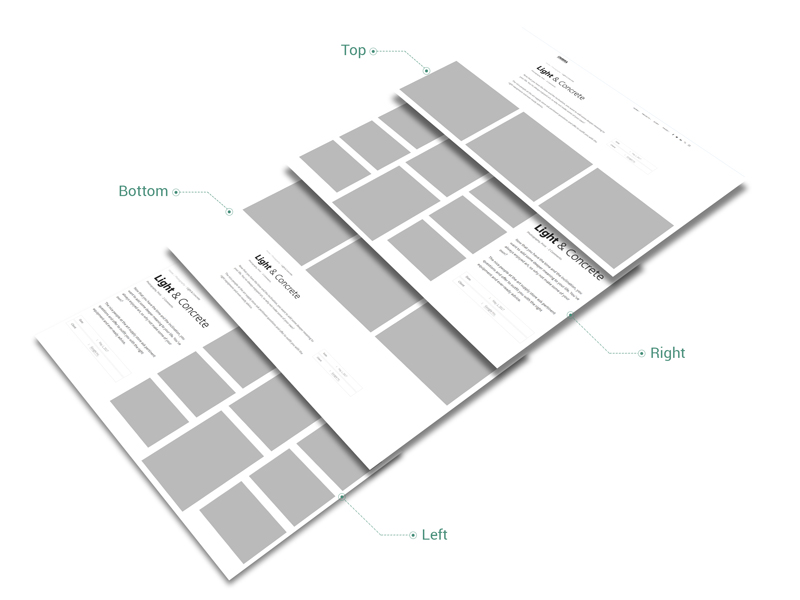
- Details Position — choose the position for the project details (they include Project Description and Custom fields): Top, Right, Bottom, Left
- Project Date — the theme built-in custom field for displaying the project date
- Project short description — enter couple of words about the project itself