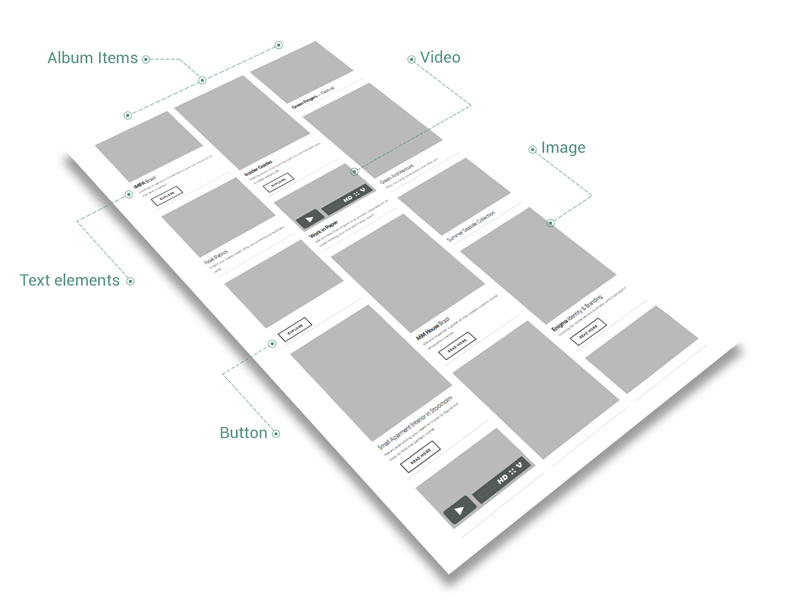
As the name already says it, Album is aimed at an outstanding visual experience. This means its main focus is on optical items like images or videos. If going further, this items could be embellished with immersive elements like headings, descriptions or buttons.
The Albums resemble Projects as they both are visual oriented and have similar means to display visual items. However, there are couple of differences.
Projects are conceived to have two sides: Single and Archive (that is displayed with Projects shortcode).
Summary
On the other side, the Album designates just one side: the Archive (showcased with Album shortcode), carefully handcrafted for combining media items with various visual options and custom entry points — this fact is possible just by using Album features.
General overview
Basically, an Album is a collection of visual items, that could mainly be displayed by three ways: cards masonry, slider and carousel, all of them being different types of archives.
Each item of this collection is called Album Item and it’s quite similar to a Single (Post, Page or Project): it can be customized separately, with own options, but it does not have a Single Item Page.
Why?
Because an album is always seen as a collection of items and, not as a single item — while viewing an album, we are enjoying to pass from one image to another in order to get a full experience of facts, we are not interested to see just one image. This was our main idea when conceiving the Album.
However, we went further to enrich the Album experience:
- we created video items, beyond the image ones. So, feel free to enjoy Video Galleries, Sliders or Carousels
- we added buttons as entry points. By this way, you will be able to connect Album Items to any page of your site
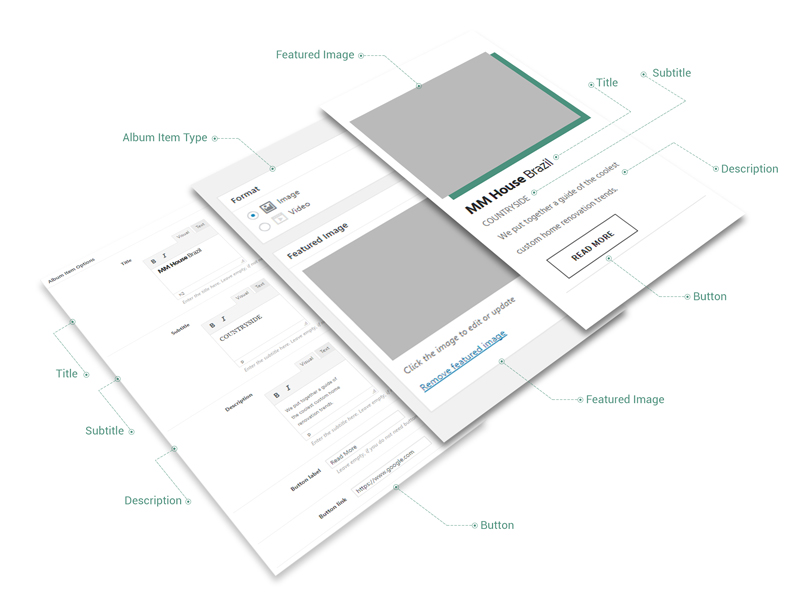
- we designed text items for each Album Items in order to be customized: Title, Subtitle and Description
Any button added to Album Item serves as an entry point to other pages of your site. This is the main reason you do not need an Album Item Single page.
So, it is obvious now that there are two types of Album Items: Image and Video. Every time you customize an Album Item, you will see its results just when added as a part of a collection, which can be inserted anytime on any page with Album shortcode.
Keep in mind The Album Post Type is strongly connected with Album Shortcode. Any changes made to Album items will be immediately visible on archives added with Album shortcode.
In order to create an Album Item, you should do the following steps:
- Log in to your WordPress Dashboard
- Click Album → Add New Item
- Enter your Album Item title, subtitle and description, then fill up Button fields
- As needed, choose the Album Item type, select a category and set a Featured Image
- Customize your Album Item from Slider Album Item panel or from the panels specific for Video
- When you are ready, click Publish
Album Item
An Album Item represents a single element of Album that can be displayed as either card (part of a Masonry) or slide (part of a Slider or Carousel).
An important feature of Album Item is represented by Featured Image — it is mandatory to set it up as it appears on any card (excepting Video cards) or slide.
In order to set it up, simply click on Set featured image link (the media uploader popup appears) and select an image from the upload list.
An Album Item can also be categorized: it is helpful when you want to showcase just a certain category of items. For doing so, you need to assign the same category to the items you want to display at the same time with Album shortcode.
If you set up the Album Item to be a Video one, then the Featured Image appears only while being a part of Slider or Carousel, chosen from Album shortcode.
In case Masonry is chosen from Album shortcode, then instead of Featured Image, the preview image of video will be displayed.
Any Album Item, either Image or Video, has couple of common options:
- Title — enter the title of Album Item. You could format it by changing its style to Bold or Italic. Leave empty in case you do not need title.
- Subtitle — enter the subtitle of Album Item; it appears immediately below the title. You could format it by changing its style to Bold or Italic. Leave empty in case you do not need subtitle.
- Description — enter the Album Item description; it appears immediately below the subtitle. You could format it by changing its style to Bold or Italic. Leave empty in case you do not need description.
- Button label — it is mandatory to insert a button label in case you want to have a button on Album Item; it appears below the description.
- Button link — insert a link in order to connect the Album Item with other page of your site or other sites
In case you set up the Album Item to be a Video one, then you will have to choose from two options:
- Online Service — where you can add videos from online environment
- Video URL — enter the link of third party video
- Video embed code — it is helpful when you want to customize your third party video appearance
- Self Hosted — where you are required to add videos from Media Library by providing their links
- Uploaded Video Link — enter the link from Media Library
- Autoplay — video will play automatically on page load
When choosing Video Album Item, you have to know two important things:
1. For Online Service type, it’s mandatory to enter Video URL, as it can be used in all types of display: Masonry, Slider or Carousel
2. Video embed code is used just when you set up Album shortcode to Masonry display.
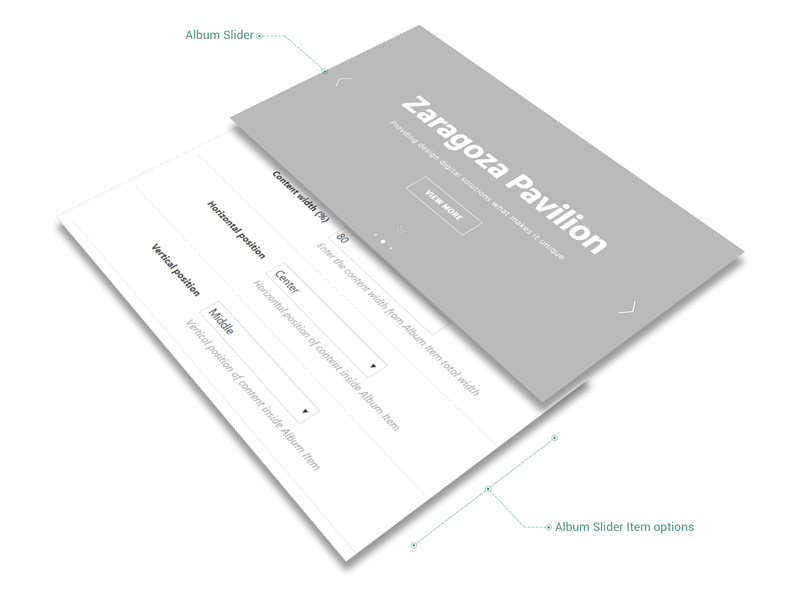
Album Slider Item Options
There are couple of more options that Album Item has while it is used as slide inside a Slider generated with Album shortcode. And the options are:
- Content width — enter the content (title, subtitle, description, button) width from Album Item total width
- Horizontal position — place the content in the center, left or right sides of Album Item
- Vertical position — place the content in the middle, top or bottom sides of Album Item